
How to Disable Automatic Updates On An Android
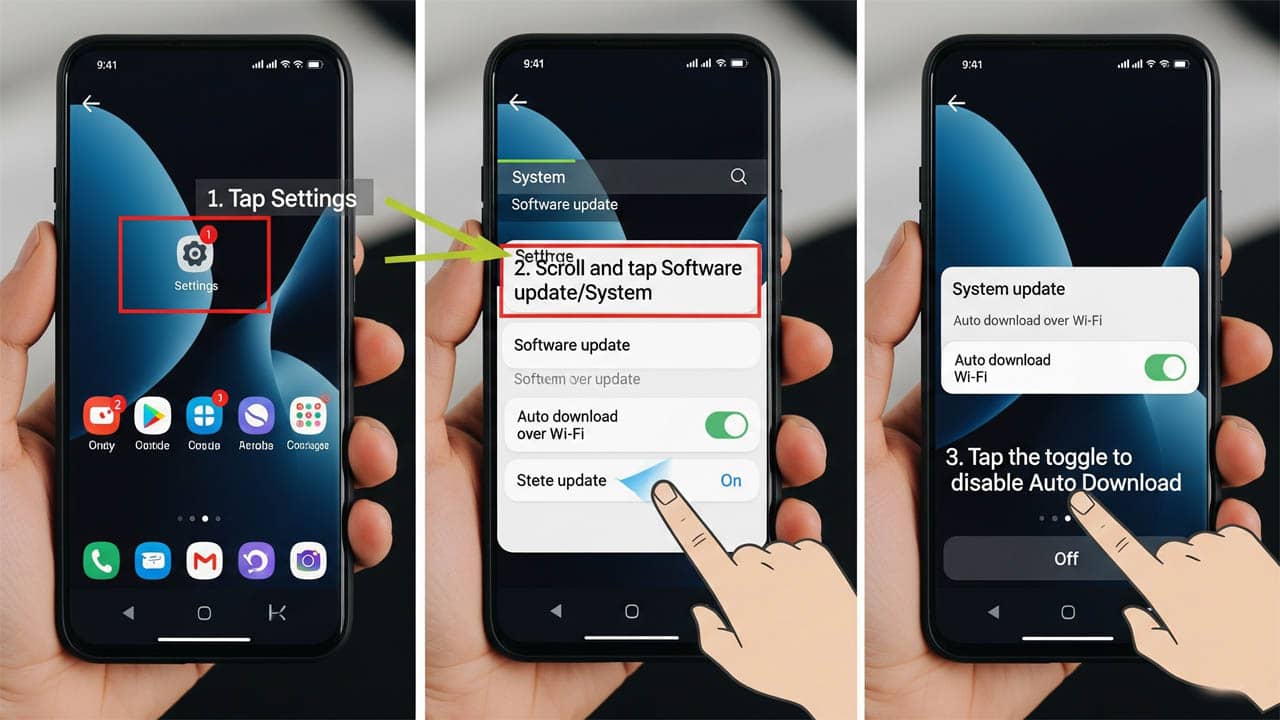
The automatic update feature for Android applications can significantly contribute to data usage. As a result, many Android smartphone owners are opting to deactivate this feature. If you’re looking to turn off automatic system updates on your Android smartphone, here’s how you can do it.
Whenever a new version of Android is detected, the device automatically updates all the applications and games installed on your phone. This process requires a lot of data and begins downloading in the background, regardless of how much data you have left on your mobile plan. If you’re not careful, you could quickly exhaust your data allowance, leading to restricted connection speeds or higher monthly bills.
The issues don’t stop there. Automatic updates can occur at inconvenient times, such as when you’re trying to stream a series in the evening, which can adversely affect your viewing experience. Additionally, these updates can sometimes cause slowdowns in the Android menus or disrupt the performance of applications.
How to Disable Automatic System Updates For Android
By turning off automatic updates on your phone, you regain full control over data consumption, a crucial aspect of managing your Android smartphone.
To turn off auto-updating apps on Android devices (smartphones and tablets), follow these steps.
- Launch the Google Play Store app on your Android phone
- Click on the icon with the first letter of your name or your avatar photo
- Select the Settings section in the new menu that has just appeared
- Then click on Network Preferences
- Tap the Automatically Update Apps section
- Change Play Store download settings
- Check the Do not auto-upload apps box
- Check the Do not update ” box of your app
- You can also opt for the Via Wi-Fi only option (which allows you to keep your phone up to date while preserving your mobile plan)
- Press the Finish button to validate your choice.
In the Google Play Store, you can turn off automatic updates based on your needs. However, keep in mind that these updates improve your phone’s stability and safety.
Almost all of these updates contain security patches to address vulnerabilities in the applications. By refusing to install them, you expose yourself to many risks.
The vulnerabilities can be exploited by malware or hackers, allowing them to access your personal information or, worse, take complete control of your smartphone. The best thing you can do is update your applications manually regularly. To manually download updates, follow the steps below.
- Return to the Google Play Store
- Click on your avatar icon in the upper right corner of the window
- Select the Manage Apps and Device option
- Access the app management system of the Play Store
- Tap on the Manage tab and then on Updates Available
- Select apps to update
- Click the small button at the top of the window to the left of the trash can icon.
- Manually download new versions of your applications
In addition to security fixes, updates sometimes provide new features to improve the user experience. In addition, they fix bugs found in earlier versions.
Disable Automatic Updates for a Specific App
Do you want to keep the old look and feel of an application without having to change your habits? This guide tells you how to prevent updates.
- Reopen the Google Play Store
- Click on your profile picture located at the top right of your smartphone screen.
- Tap Manage Apps & Device, then tap the Manage tab
- Open the app for which you want to turn off automatic updates.
- Click the three-dot menu button at the top right of the app description card.
- Uncheck the box next to Auto Update.
Turning off automatic updates has many benefits, including saving storage space, reducing data consumption, and keeping publishers from abandoning features.
Final Words
Automatic updates on Android are useful for keeping apps and system software up to date, but sometimes they can be inconvenient. Whether you want to save data, maintain control over new app versions, or avoid unexpected system changes, disabling auto-updates can give you more control over your device.
Also Read: Best Free Android PDF Readers